


WEEX Authenticator Invalid Code: How to Fix Google Authenticator Code Errors
A WEEX authenticator invalid code usually traces back to a code that has already refreshed, a code typed in the wrong box, a code read from the wrong entry in the app or a phone clock that is off.
Google Authenticator codes on WEEX change every 30 seconds, and the Security verification window keeps the email, SMS and Google Authenticator codes in separate fields. When none of these explains the rejection, Google Authenticator can be unlinked and linked again.
Why is a Google Authenticator code rejected on WEEX?
A Google Authenticator code is rejected when it does not match the code WEEX expects at that moment. WEEX’s Link Google Authenticator page states that once linked, the app generates a new verification code every 30 seconds.
WEEX’s guide on securing crypto assets describes these codes as time-based codes generated directly on the device. A code that has already refreshed, a code from the wrong entry, a code typed in the wrong field or a phone clock that is off can each lead to a rejection.
How to check that the code is current
The code entered should be the one the app displays at the moment of submitting. Because the code changes every 30 seconds, a code read a few seconds earlier may already have been replaced. When the code is about to refresh, waiting for the next code and entering it right away avoids the mismatch.
How to check that the code is in the right field
The Security verification window on WEEX has three separate fields, and each takes a code from a different source. The window shows a field for the email verification code, a field for the SMS verification code and a field for the Google Authenticator code. A Get code button sits beside the email and SMS fields, since those codes are sent to the user. The Google Authenticator code has no Get code button, because it comes from the app.
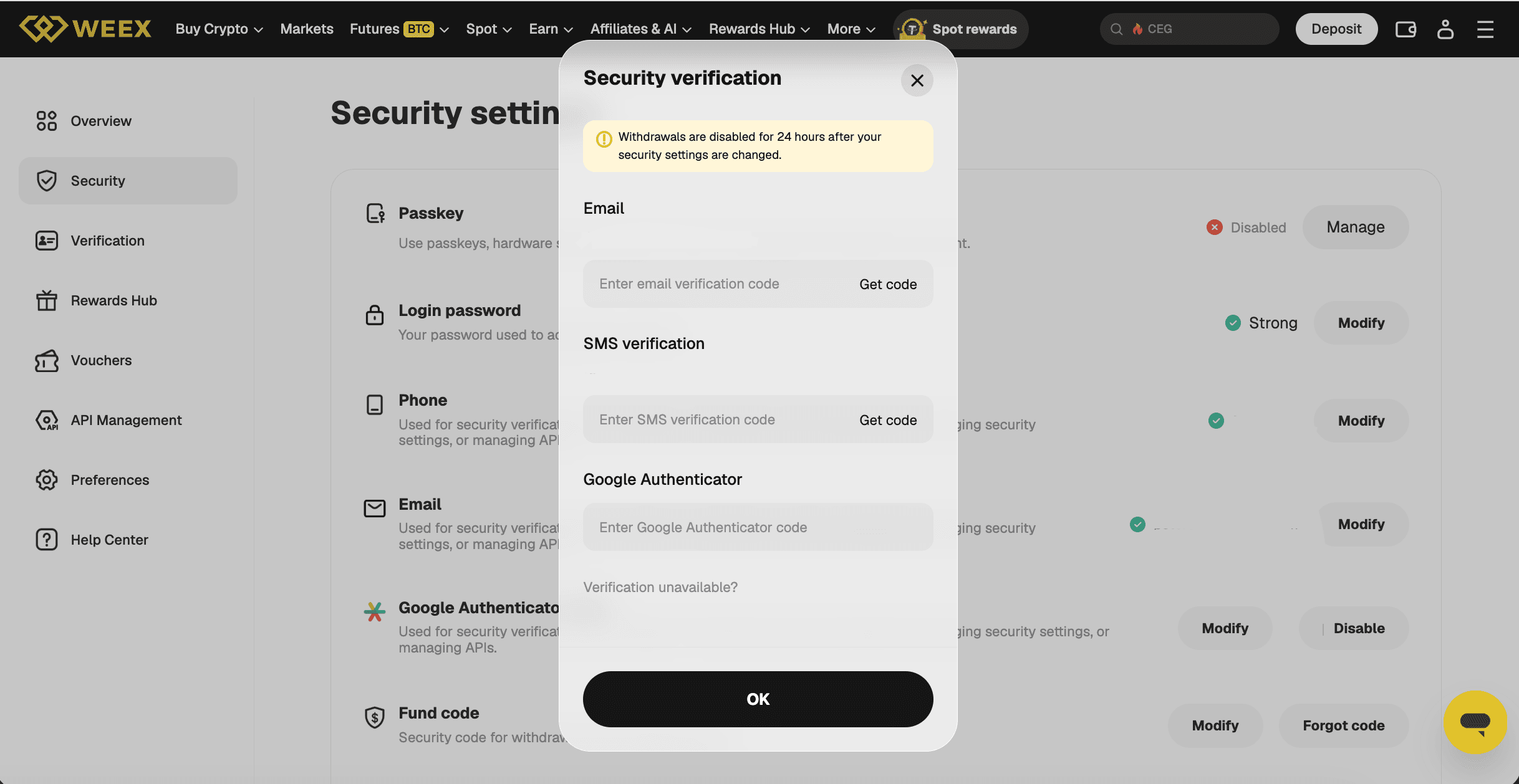
If the email or SMS code is the one that does not arrive or is rejected, WEEX’s separate article on verification codes that do not arrive covers troubleshooting for both. The window also shows a “Verification unavailable?” link for users who cannot provide a code.
How to check that the code belongs to the WEEX entry
Google Authenticator can hold many entries, and the code has to come from the one created for WEEX. As general guidance, the entry’s name should be checked against WEEX before reading the code. If the entry was added by typing the key manually instead of scanning the QR code, a mistyped character produces codes that never match, and the entry then needs to be added again from the key or QR code shown on WEEX’s Link Google Authenticator page.
How to fix the time on Google Authenticator
On Android, Google Authenticator has a time correction option that can fix rejected codes. According to Google’s help page on time sync for Google Authenticator, the steps are to open the app, tap More, choose Settings, choose Time correction for codes and then tap Sync now. Google states that the codes depend on the device’s clock, and that the sync changes only the app’s internal time, not the device’s Date & Time settings. If the app reports that the time is already correct, Google’s page points to its common issues page.
Google’s page covers Android only. On other devices, the phone’s own date and time should be set to update automatically, which is general guidance rather than a statement from Google or WEEX.
What to do if the code is still rejected
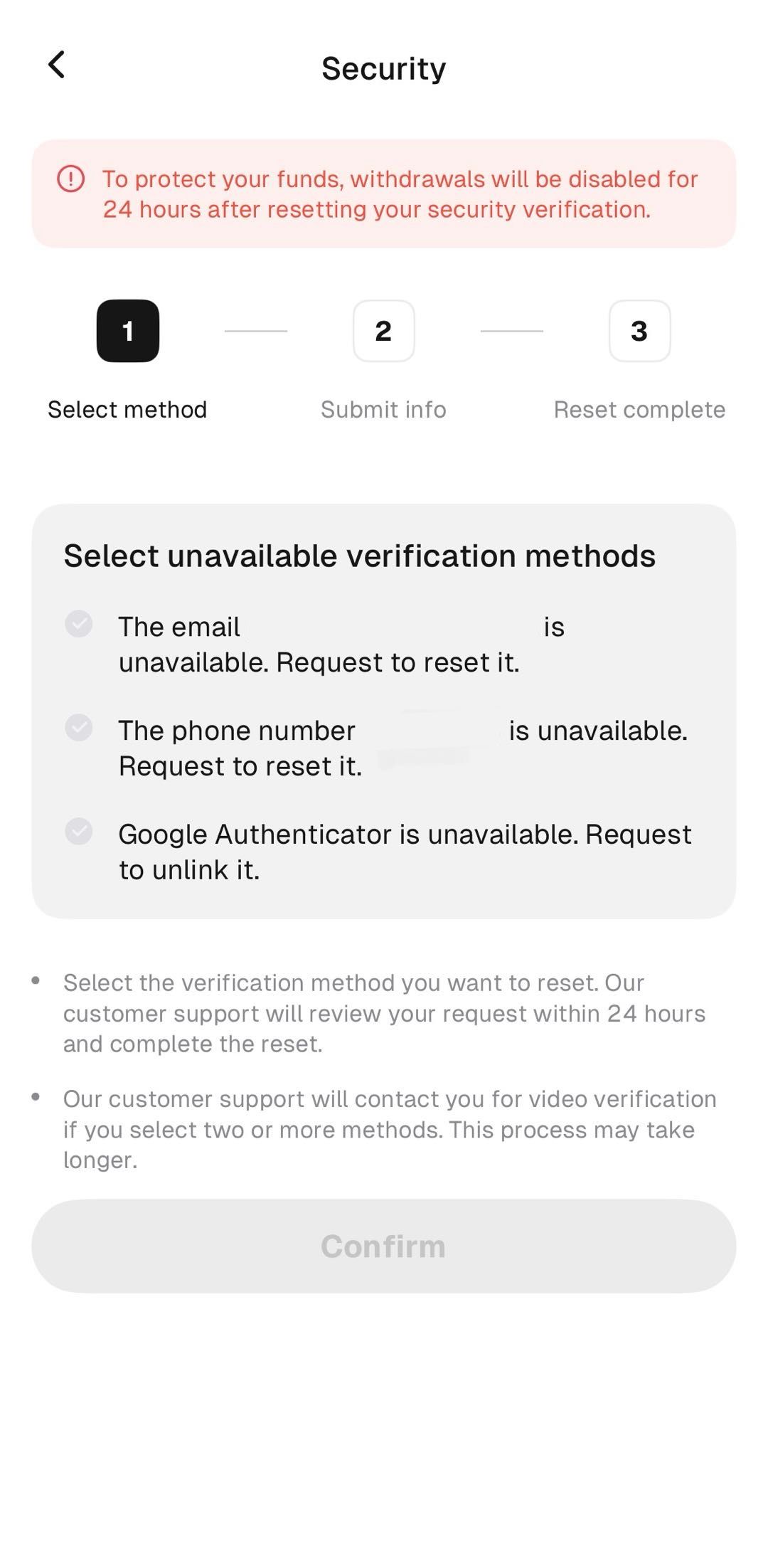
If the code is still rejected after these checks, Google Authenticator can be unlinked and linked again. In the WEEX app, the user taps the nine-dot icon at the top left, then Security and Google Authentication, and selects “Google Authenticator is unavailable. Request to unlink it.” on the Select unavailable verification methods page. KYC verification must be completed, and WEEX states that customer support reviews the request within 24 hours and completes the reset. If two or more methods are selected, customer support contacts the user for video verification, which may take longer.
The page warns that withdrawals will be disabled for 24 hours after resetting the security verification, so users who need to withdraw soon should allow for that period.
Conclusion
A WEEX authenticator invalid code is most often fixed by entering the current code, in the Google Authenticator field, from the WEEX entry, on a phone with the correct time. Google Authenticator codes refresh every 30 seconds, the Security verification window keeps the email, SMS and Google Authenticator fields separate, and Android users can sync the app’s time through Time correction for codes. If the code is still rejected, the unlink option in the app starts the reset, with a 24-hour review and a 24-hour withdrawal pause afterward.
FAQ
1. Why is the Google Authenticator code rejected on WEEX?
The code may have refreshed, been typed in the wrong field, come from the wrong entry in the app or been generated on a phone with an incorrect clock. WEEX states that Google Authenticator generates a new code every 30 seconds.
2. How often does the WEEX Google Authenticator code change?
Once linked, Google Authenticator generates a new verification code every 30 seconds, according to WEEX. The code entered should be the one the app currently displays.
3. How to fix the time for Google Authenticator?
On Android, open Google Authenticator, tap More, choose Settings, choose Time correction for codes and tap Sync now, according to Google’s help page. The sync changes only the app’s internal time.
4. Where is the Google Authenticator code entered on WEEX?
It is entered in the Google Authenticator field of the Security verification window, which also has separate fields for the email and SMS codes. Only the email and SMS fields have a Get code button.
5. What if the WEEX authenticator invalid code problem continues?
Users can select “Google Authenticator is unavailable. Request to unlink it.” in the app. WEEX states that customer support reviews the request within 24 hours, KYC must be completed and withdrawals are disabled for 24 hours afterward.

Gainers


