


WEEX Authenticator Lost: How to Reset Google Authenticator
For a WEEX authenticator lost case, Google Authenticator can be reset from the Security page by choosing Disable in the Google Authenticator code row, or by marking the code as unavailable in the WEEX app.
WEEX states that users who have not completed KYC verification cannot continue, and that withdrawals are disabled for 24 hours after security settings are changed. The steps below cover both routes, the review time WEEX shows on screen and what to do afterward.
What happens when a WEEX authenticator is lost?
When the phone or the app that holds the Google Authenticator codes is lost, the codes WEEX asks for are no longer available. On the Security settings page, the Google Authenticator code row is described as used for security verification when logging in, withdrawing, recovering passwords, changing security settings or managing APIs. A lost phone therefore affects more than login.
A backed-up key can avoid a reset. WEEX’s Link Google Authenticator page states that the key shown during setup is essential for account recovery when the phone is changed or lost. Users who saved it can add the key to Google Authenticator on a new phone. For setup and backup, see [WEEX Google Authenticator 2FA: How to Bind, Back Up and Verify It]({{URL of the binding article}}).
What is needed before resetting Google Authenticator on WEEX?
WEEX requires completed KYC verification to continue with the reset. According to WEEX’s Help Center article on resetting Google Authenticator, users who have not completed KYC verification cannot continue. Users who cannot complete KYC, or who have other special reasons, are directed to customer service.
Access to the other linked verification methods also helps. On the website, the Security verification window asks for codes from the email, the phone and Google Authenticator, so the email and the phone number should be reachable when the reset starts.
How to reset Google Authenticator on the WEEX website
On the website, Google Authenticator is reset from Security settings with the Disable button. The steps are as follows.First, the user clicks the profile icon at the top right of the page. Second, the user clicks Security.
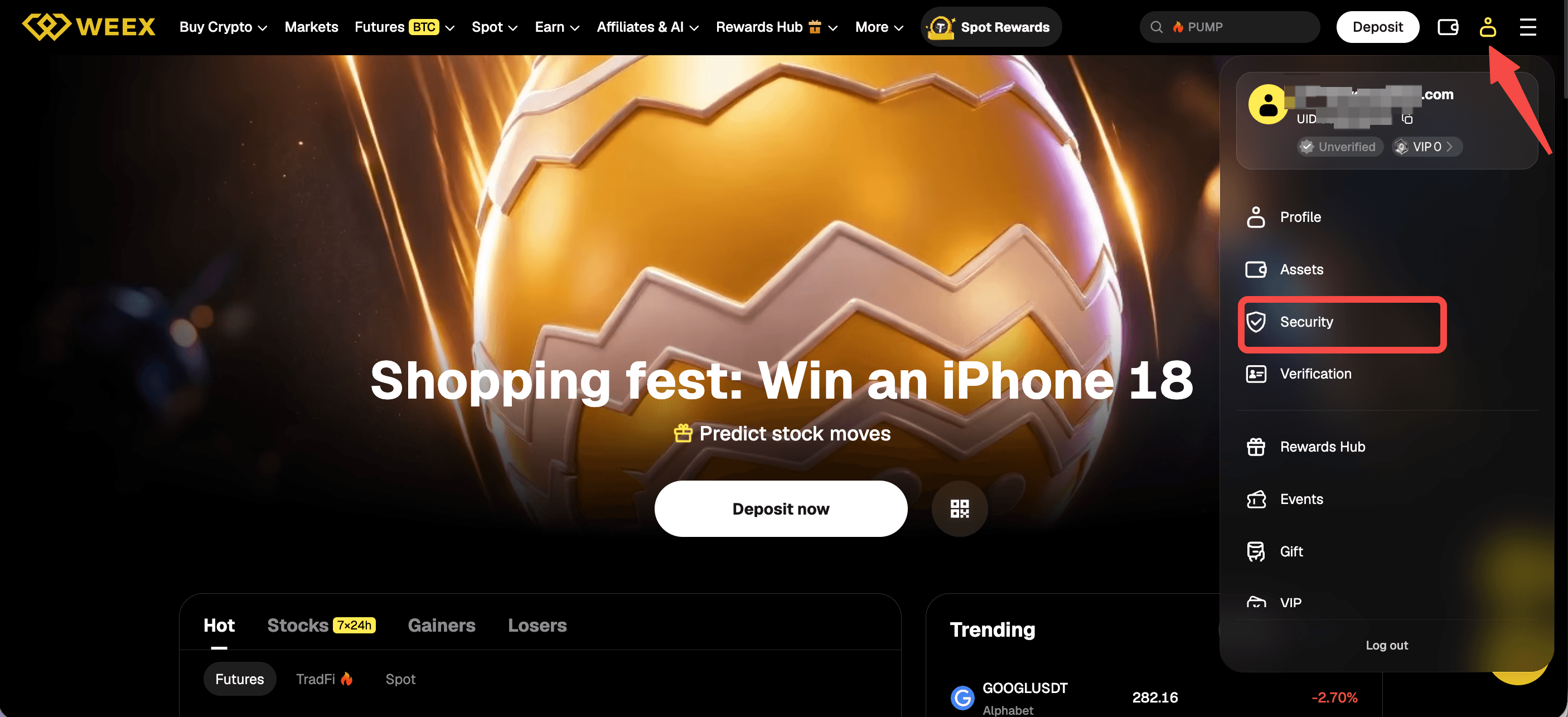
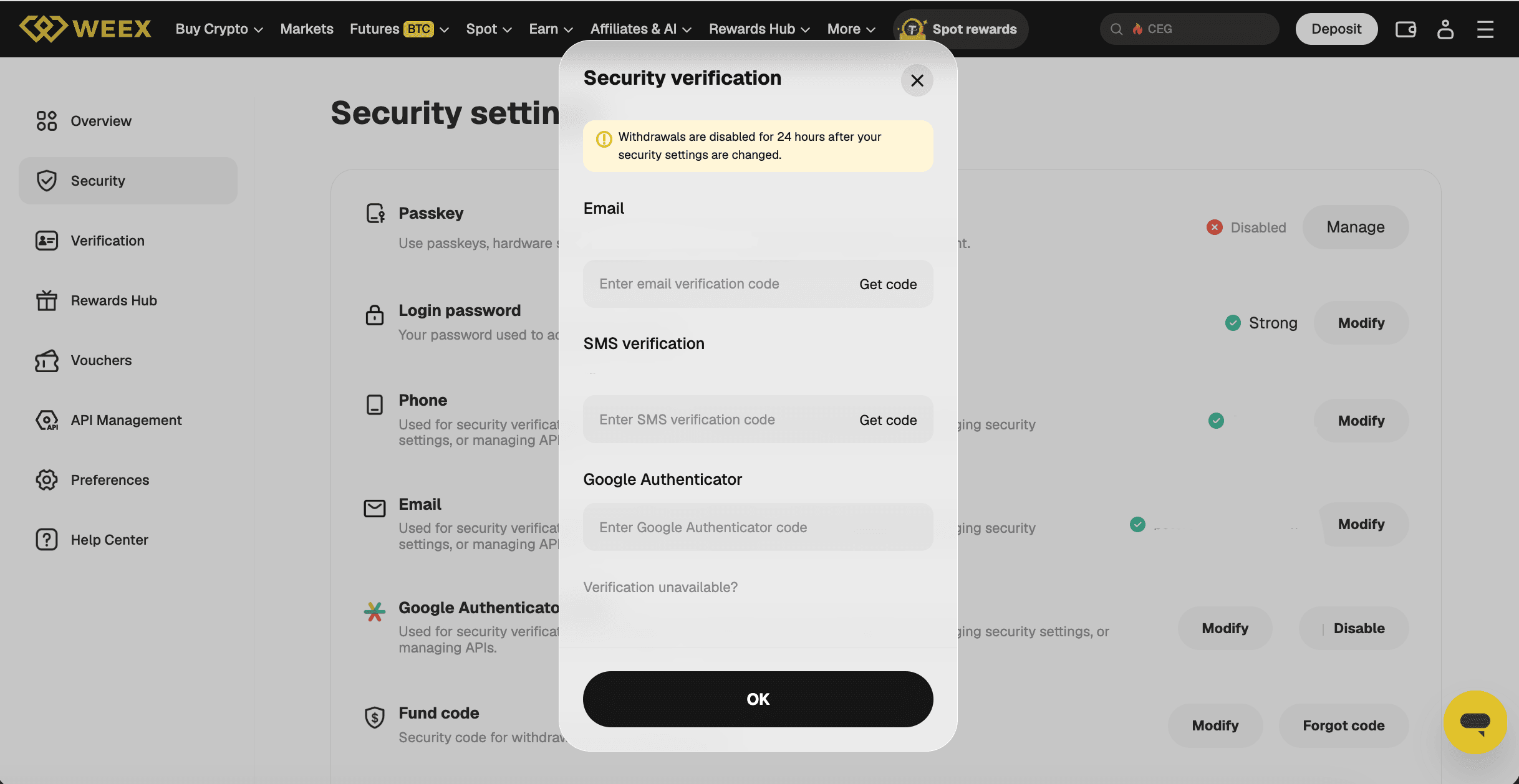
Third, in the Google Authenticator code row, which shows Modify and Disable buttons when the authenticator is linked, the user clicks Disable. Fourth, a Security verification window opens with fields for an email verification code, an SMS verification code and a Google Authenticator code, with a Get code button beside the email and SMS fields. The user enters the codes and clicks OK.
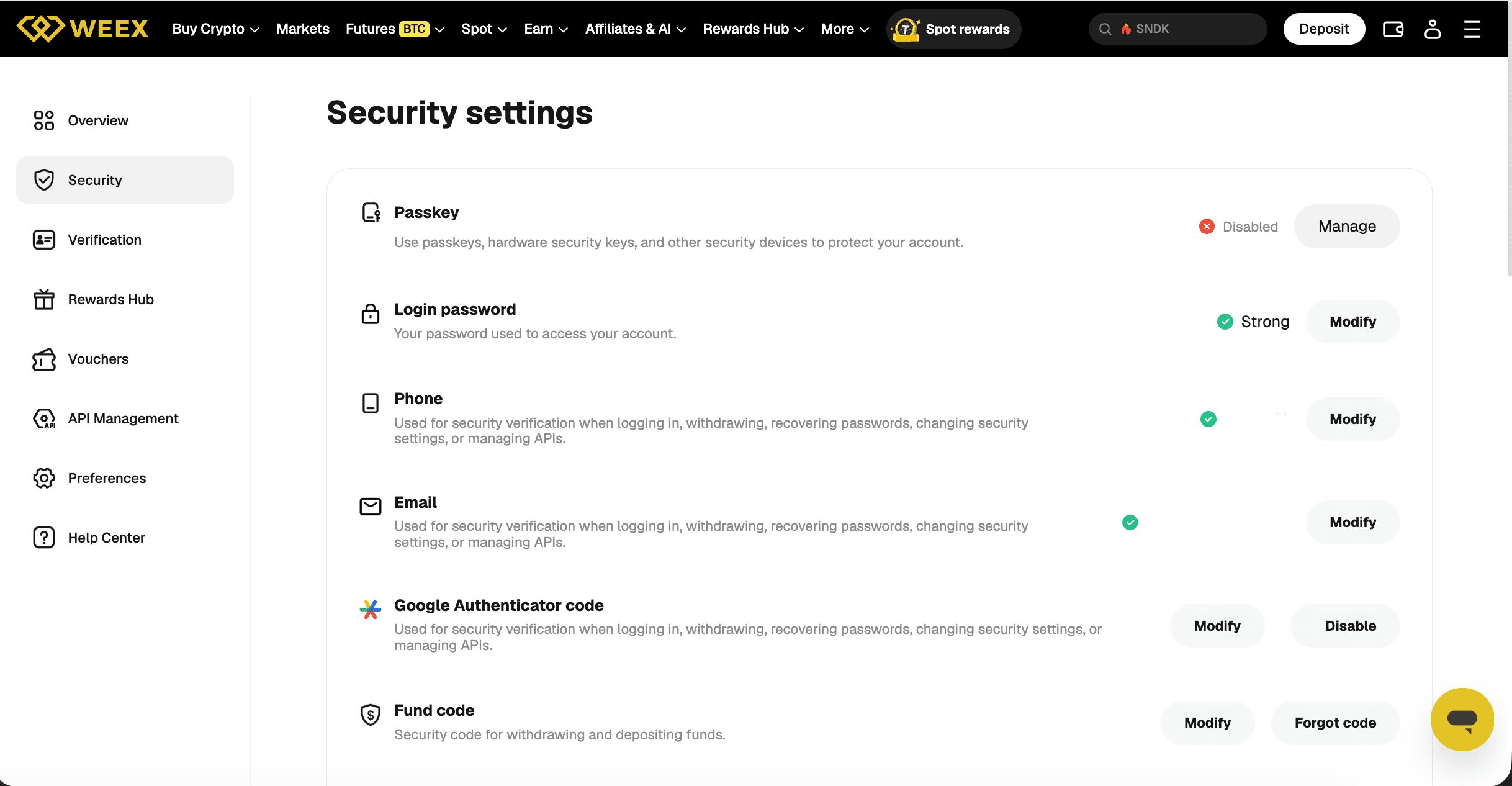
The window warns that withdrawals are disabled for 24 hours after security settings are changed. A “Verification unavailable?” link appears below the code fields for users who cannot provide a code.
How to reset Google Authenticator in the WEEX app
In the app, the Google Authenticator code can be marked as unavailable and unlinked. The steps are as follows.
First, on the home screen, the user taps the nine-dot icon at the top left. Second, the user taps Security and then Google Authentication. Third, the Security page opens a three-step flow: Select method, Submit info and Reset complete. Under “Select unavailable verification methods,” the user can choose the email, the phone number or Google Authenticator as unavailable. For the authenticator, the option reads “Google Authenticator is unavailable. Request to unlink it.” The user selects it and taps Confirm. Fourth, the user submits the required information as prompted.
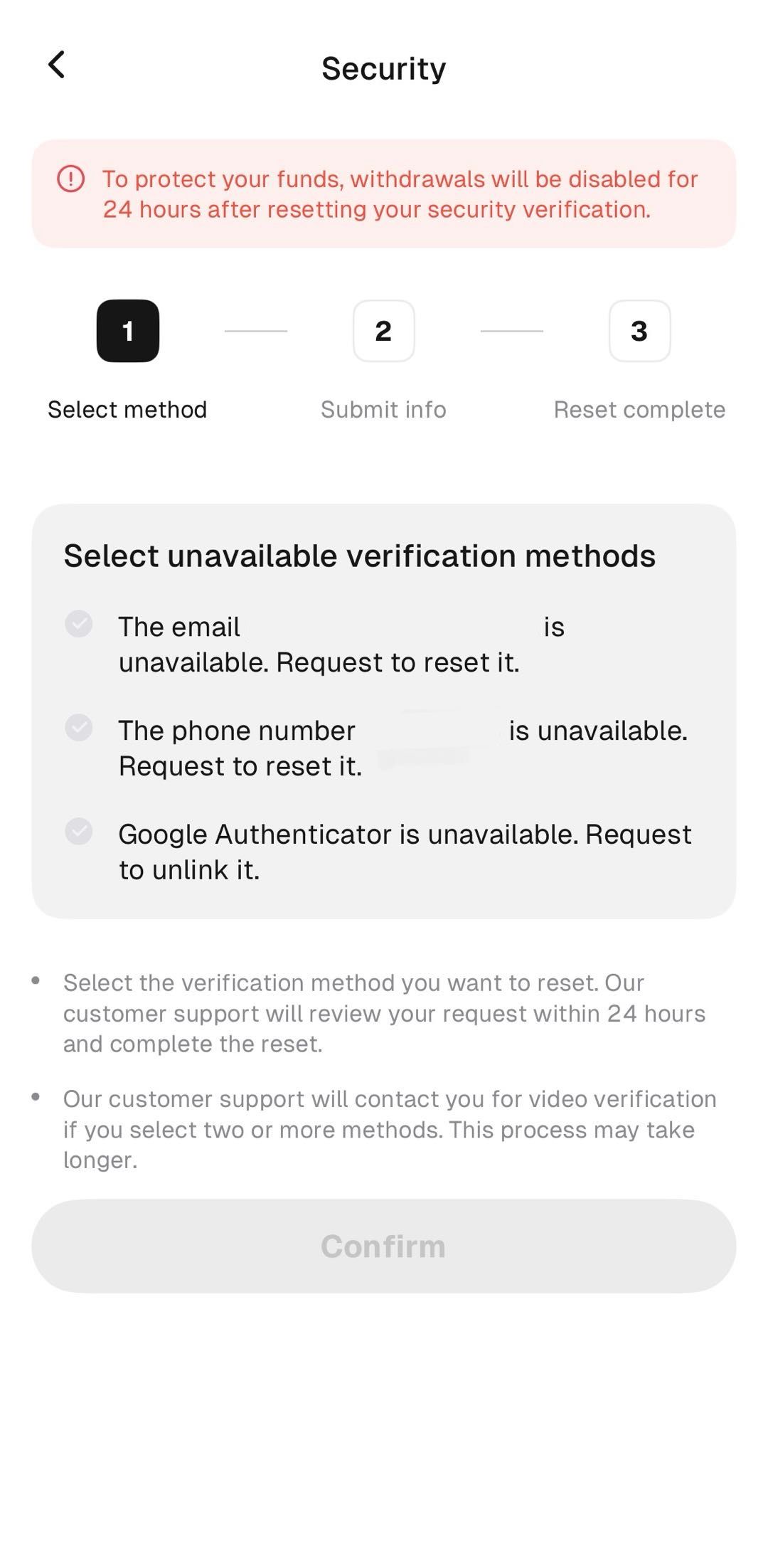
The page states that customer support reviews the request within 24 hours and completes the reset. It also states that customer support contacts the user for video verification if two or more methods are selected, which may take longer. The prompts shown on screen list the information to submit.
What to do if the verification methods are unavailable
Users who cannot provide the verification codes can use the “Verification unavailable?” link on the website, the unavailable-method option in the app or the security verification recovery page. The recovery page lists four steps: select the unavailable security options, submit data, wait while the request is under review, and receive the completed reset. WEEX states that support reviews requests within 24 hours and resets the method.
If two or more methods are selected, customer service contacts the user for video verification, which may take longer. The recovery page does not name Google Authenticator, email or phone individually.
How long does a WEEX Google Authenticator reset take?
WEEX states that customer support reviews reset requests within 24 hours. The statement appears on the app’s Select unavailable verification methods page and on the recovery page. Video verification applies when two or more methods are selected, and WEEX notes that this may take longer. The website Security verification window shows no review period.
What happens after the reset?
Withdrawals are disabled for 24 hours. The website window states that withdrawals are disabled for 24 hours after security settings are changed, and the app page states that withdrawals will be disabled for 24 hours after resetting the security verification. WEEX’s Help Center article on resetting Google Authenticator also states that any verification method change disables withdrawals for 24 hours. Users who need to withdraw soon after a reset should allow for that period.
After the reset, Google Authenticator can be linked again from the same Security settings page, and the key shown during setup should be backed up before linking. WEEX’s account security guide recommends Google Authentication over SMS because SMS verification is exposed to SIM swap attacks, and advises storing the backup key safely to restore access after changing or losing a phone. If email or phone details also need changing, see [How to Change Email and Phone Number on WEEX]({{URL of the email and phone article}}).
What if verification codes do not arrive?
A missing verification code is not always a lost authenticator, and WEEX has a separate troubleshooting article for it. For SMS codes, WEEX suggests turning on airplane mode for one minute and then off, moving to a place with better signal, checking whether the SMS inbox is full or blocking features are on, and retrying several times because the system may switch senders. For email codes, it suggests switching between Wi-Fi and cellular data, restarting the device, and checking the spam and promotions folders. WEEX says that users who still cannot receive codes should contact customer service.
Conclusion
To reset Google Authenticator after a WEEX authenticator lost situation, users choose Disable in the Google Authenticator code row on the website, or mark the code as unavailable in the app. WEEX shows a 24-hour review time for reset requests, and withdrawals are disabled for 24 hours after the change. Users who cannot provide the codes can use the Verification unavailable? link, the app’s unavailable-method option or the recovery page. A backed-up key avoids the reset altogether, so saving it during setup is the main protection against losing access.
FAQ
1. How to reset Google Authenticator on WEEX?
On the website, users click the profile icon, choose Security, click Disable in the Google Authenticator code row and enter the codes in the Security verification window. In the app, users tap the nine-dot icon, choose Security and Google Authentication, and select “Google Authenticator is unavailable. Request to unlink it.”
2. What if a WEEX authenticator is lost with the phone?
Users can use the “Verification unavailable?” link in the website window, the unavailable-method option in the app or the security verification recovery page. A backed-up key can also be added to Google Authenticator on a new phone.
3. How long does resetting Google Authenticator on WEEX take?
WEEX states on the app page and the recovery page that customer support reviews requests within 24 hours. Video verification applies when two or more methods are selected and may take longer.
4. Are withdrawals affected after resetting Google Authenticator on WEEX?
Yes. WEEX states that withdrawals are disabled for 24 hours after security settings are changed or security verification is reset. Users who need to withdraw soon after a reset should allow for that period.
5. Is KYC required to reset Google Authenticator on WEEX?
Yes. WEEX states that users who have not completed KYC verification cannot continue, and directs users who cannot complete KYC to customer service.

Gainers


